How to Play Null’s Brawl PC Using BlueStacks
How to Play Null’s Brawl on PC — BlueStacks Setup
Playing Null’s Brawl PC on a larger screen with a mouse and keyboard completely changes the experience. The precision you get from mouse aiming alone makes a real difference in game modes where shot accuracy matters, and the ability to see more of the map at once on a monitor gives you information that a phone screen simply cannot show you.
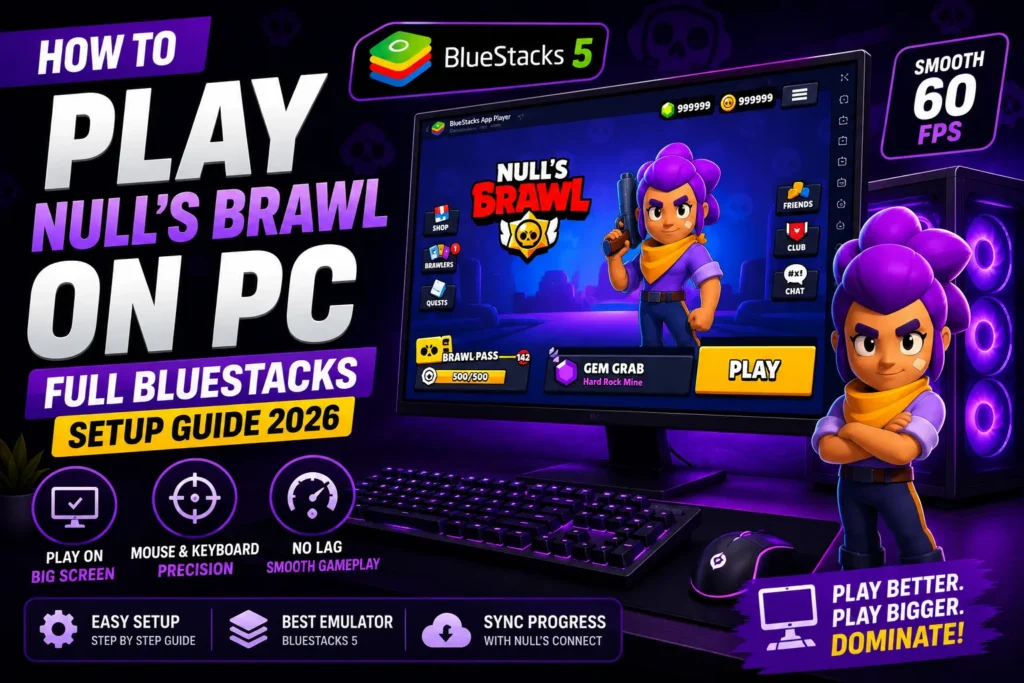
This guide walks through the complete process of getting Null’s Brawl running on PC using BlueStacks, which is the most reliable emulator for this game in 2026. It also covers NOX Player as an alternative, keyboard control configuration, performance optimization, and every common error you might hit along the way.
Why Play Null’s Brawl PC
Before getting into the setup, it is worth understanding what you actually gain from playing on PC rather than mobile.
The most immediate difference is map visibility. On a phone screen, you are constantly zooming in and out to track enemies and objectives. On a monitor, you can see your entire surrounding area at once without any zooming. In Gem Grab and Bounty this means you spot incoming enemies before they are on top of you. In Showdown it means you track the closing poison circle without losing sight of nearby opponents.
Mouse aiming is measurably more precise than thumb joystick controls. For brawlers like Brock, Piper, Colt, and Belle that reward accurate directional shots, the mouse advantage is significant. You can reliably aim at specific targets rather than pointing roughly in their direction.
Keyboard shortcuts mean you can keep your movement thumb active while using abilities. On mobile, using a gadget or super while moving requires awkward finger positioning. On PC, those are bound to separate keys so movement never stops.
The other practical benefit is battery life and heat. Null’s Brawl running on a phone generates heat and drains the battery over long sessions. On PC neither concern exists.
Choosing Your Emulator
Two emulators stand out for Null’s Brawl in 2026.
BlueStacks 5 is the clear first recommendation for most users. It is specifically optimized for mobile gaming, has excellent keyboard mapping tools, supports multi-instance play, and receives regular updates that maintain compatibility with new APK versions. If your computer has 8 GB of RAM or more and a reasonably modern processor, BlueStacks will give you the smoothest experience.
NOX Player is the better choice for older computers. It has lower base RAM requirements than BlueStacks and performs well on machines with 4 to 6 GB of total RAM where BlueStacks sometimes struggles. The interface is slightly less polished but the gameplay experience is comparable.
LDPlayer 9 is worth mentioning as a third option particularly for players who want to run multiple Null’s Brawl accounts simultaneously. Its multi-instance management is excellent.
System Requirements
| Specification | Minimum | Recommended |
| Operating System | Windows 7 64-bit | Windows 10 or 11 64-bit |
| Processor | Intel Core i3 or AMD Ryzen 3 | Intel Core i5 or AMD Ryzen 5 |
| RAM | 4 GB | 8 GB or more |
| Storage | 5 GB free | 10 GB free |
| Graphics | Intel integrated HD | NVIDIA GTX 1050 or equivalent |
| Virtualization | Intel VT-x or AMD-V enabled | Same, must be active in BIOS |
| Internet | Required | Wired connection recommended |
Step by Step: Installing Null’s Brawl via BlueStacks
Download BlueStacks from bluestacks.com. Get the latest version, BlueStacks 5. The installer is around 500 MB. Run it and follow the standard installation prompts. Installation typically takes 5 to 10 minutes.
Open BlueStacks when installation completes. On first launch it will ask you to sign in with a Google account. This is required for full emulator functionality. Use an existing Google account or create a free one. You will not be downloading Null’s Brawl from the Play Store so this step is just for emulator access.
Download the Null’s Brawl APK to your Windows desktop from NullBrawlAPK.com. Open your regular browser, go to the site, and download the latest APK file. Save it to somewhere easy to find, like your desktop.
Install the APK in BlueStacks by dragging the downloaded APK file from your desktop and dropping it directly into the BlueStacks window. BlueStacks will recognize it and ask if you want to install it. Click Install. Wait about two minutes for the process to complete.
Launch Null’s Brawl from the BlueStacks home screen. The game will start and connect to the private server. The first launch takes a little longer as assets load.
Configure keyboard controls by clicking the keyboard icon in the BlueStacks toolbar while Null’s Brawl is running. The default keyboard mapping is already set up for basic game functions but you can customize every key. Most players use WASD for movement, the left mouse button for attack direction, the right mouse button or E key for super, F or G for gadget, and Enter for chat.
Set up Null’s Connect before playing. Open the right-hand menu inside Null’s Brawl and follow the Null’s Connect setup. Your PC and mobile progress sync through the same account, so anything you do on PC is reflected when you play on your phone and vice versa.
Installing via NOX Player
The process is nearly identical but with one useful difference. NOX Player lets you drag an APK file from your Windows desktop directly into the emulator window for immediate installation, which is slightly faster than the BlueStacks drag-and-drop for some users.
Download NOX Player from bignox.com. Install it and open it. Go to NullBrawlAPK.com in your regular Windows browser and download the APK to your desktop. Drag the APK file into the NOX window. NOX installs it automatically. Open Null’s Brawl from the NOX home screen.
Default Keyboard Controls for Null’s Brawl on PC
| Action | Default Key | Recommended Alternative |
| Move Up | W | W |
| Move Down | S | S |
| Move Left | A | A |
| Move Right | D | D |
| Attack | Left Mouse Button | Left Mouse Button |
| Super Ability | Right Mouse Button | E |
| Gadget | F | G |
| Aim Direction | Mouse Movement | Mouse Movement |
| Open Chat | Enter | Enter |
| Quick Emote | Q | Q |
You can remap every key through the BlueStacks keyboard mapper, which you access by clicking the keyboard icon in the toolbar. Most experienced PC players spend a few minutes setting up a layout that feels comfortable before their first real match.
Optimizing BlueStacks Performance for Null’s Brawl
Out of the box BlueStacks will run Null’s Brawl acceptably but a few settings adjustments make a noticeable difference.
Open BlueStacks settings and go to Performance. Set CPU allocation to High and RAM allocation to at least 4 GB if your computer has 8 GB total. If you have 16 GB you can push this to 6 GB. This dedicates more resources directly to the emulator and reduces stuttering during intense matches.
Set the FPS cap to 60 rather than leaving it at the default 30. The difference in smoothness is immediately obvious in gameplay. Find the FPS setting under Performance in BlueStacks settings.
Enable virtualization in your BIOS if you have not already. Most modern computers have Intel VT-x or AMD-V available but it is sometimes disabled by default. Go into your BIOS settings on startup (usually by pressing Delete, F2, or F10 depending on your motherboard brand), find the CPU configuration section, and enable virtualization technology. After doing this, BlueStacks and other emulators run significantly faster.
Use a wired ethernet connection rather than WiFi for multiplayer matches. It eliminates the connection instability that sometimes causes lag spikes in mobile games running through emulators.
Install Null’s Brawl on an SSD if your computer has one. Load times are dramatically faster on solid-state storage compared to a traditional spinning hard drive.
Common PC Errors and Fixes
BlueStacks will not open — Enable Hyper-V in Windows Features. Search for Turn Windows Features On or Off in the Windows search bar. Enable Hyper-V, Virtual Machine Platform, and Windows Hypervisor Platform. Restart your computer and try again.
APK not installing inside BlueStacks — Make sure BlueStacks is updated to the latest version. Try dragging the APK from your Windows desktop directly into the BlueStacks window rather than using the in-emulator browser download method.
Game runs slowly or stutters — Increase CPU and RAM allocation in BlueStacks Performance settings. Enable virtualization in BIOS. Close all background applications including browsers and streaming services before launching.
Black screen when starting Null’s Brawl — Go to BlueStacks settings then Display and switch the rendering engine between DirectX and OpenGL. Update your graphics card drivers through Windows Device Manager.
Cannot connect to Null’s Brawl private server on PC — Check your internet connection and try switching between WiFi and a wired connection. Restart BlueStacks completely and relaunch the game. Check NullBrawlAPK.com for any server maintenance announcements.
Keyboard controls not responding — Click once inside the BlueStacks window to make sure it has active focus before using keyboard controls. Check that no other application is capturing keyboard input.
| Common Issue | Most Likely Cause | Fix |
| BlueStacks won’t launch | Hyper-V disabled | Enable in Windows Features |
| APK install fails | Outdated BlueStacks | Update to latest version |
| Game stutters | Low RAM allocation | Increase in Performance settings |
| Black screen | Wrong rendering engine | Switch DirectX/OpenGL |
| No server connection | Network issue | Restart BlueStacks and check connection |
| Controls not working | App not in focus | Click inside the BlueStacks window |
| Slow load times | HDD instead of SSD | Install on SSD |
| Frame drops in matches | Background apps | Close all other programs |
Playing Null’s Brawl on Mac
BlueStacks offers a macOS version. Download it from bluestacks.com and select the Mac download. Install it from the DMG file and follow the same APK installation process.
Apple Silicon Mac users running M1, M2, or M3 chips should confirm they are downloading the Apple Silicon version of BlueStacks from the download page. LDPlayer also offers a Mac version as an alternative.
Conclusion
Playing Null’s Brawl on PC through BlueStacks gives you real competitive advantages over mobile play. Better map visibility, precise mouse aiming, keyboard shortcuts, and comfortable ergonomics for long sessions all contribute to a noticeably better experience. The setup takes about fifteen minutes from downloading BlueStacks to your first match. Null’s Connect keeps your progress synced between PC and phone so you never lose anything switching between platforms.
![Best Similar Games like Null’s Brawl in 2026 [Top 20 Picks]](https://nullbrawlapk.com/wp-content/uploads/2026/05/Similar-Games-Like-Nulls-Brawl-1-768x576.webp)