How to Download and Install Null’s Brawl APK on Android 2026
Null’s Brawl Not Working? Installation & Loading Issues
There is nothing more frustrating than downloading a game like Null’s Brawl Not Working, following the steps correctly, and still hitting an error that stops you from playing. Null’s Brawl runs smoothly for the vast majority of players but there are specific errors that come up repeatedly in the community and each one has a reliable fix.
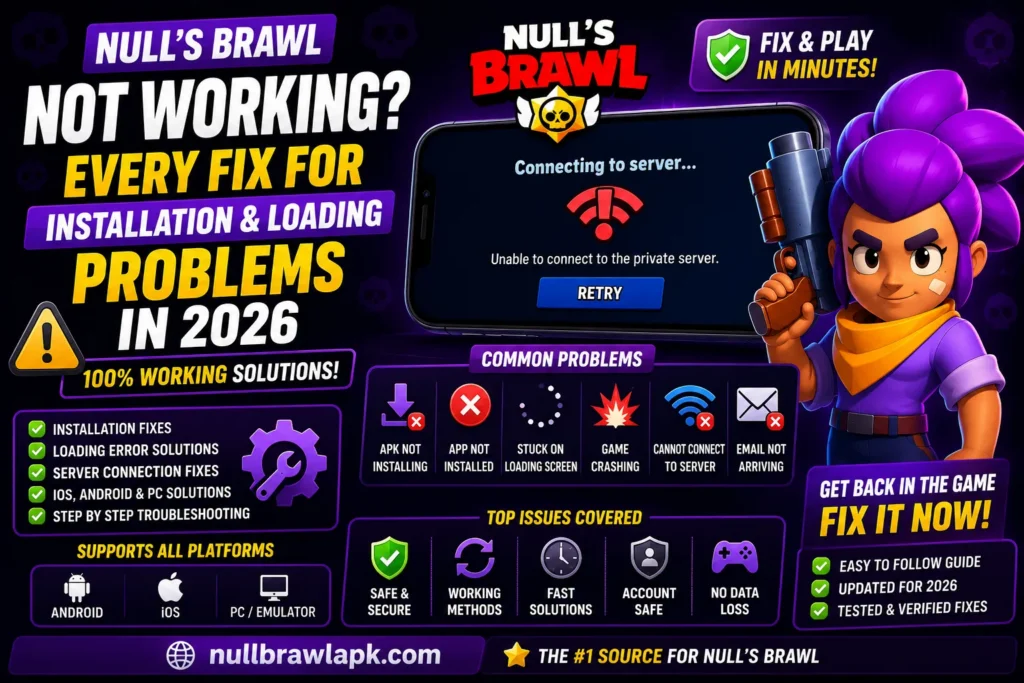
This guide covers every common problem from the moment you try to install Null’s Brawl to the loading screen issues that sometimes appear after installation, plus the connection problems that can show up during actual gameplay. Each fix here has been tested and confirmed working by real players.
Error One: Null’s Brawl APK Not Installing
This is the most common issue new players hit and it almost always comes from one of three causes.
Unknown Sources is not enabled. This is the most frequent cause by far. Android blocks installation from outside the Play Store unless you specifically allow it. Go to Settings then Security (or Privacy on some devices) and enable Install from Unknown Sources or Unknown Apps for your browser. On Android 8.0 and above, this is a per-app permission. Go to Settings then Apps then find Chrome or your browser then tap Install Unknown Apps and enable it.
Insufficient storage. Null’s Brawl needs about 1.5 GB of free space for the APK plus the resources it downloads on first launch. If your phone is nearly full, the installation will fail partway through. Go to Settings then Storage and check your available space. Delete apps you no longer use, move photos to cloud storage, or clear app caches to free up room.
Corrupted download. Sometimes a download gets interrupted or the file does not complete cleanly. This produces an APK that looks the right size but is internally damaged. The fix is simple. Delete the downloaded file completely from your Downloads folder, go back to NullBrawlAPK.com, and download it again. Make sure your phone stays awake and your connection stays stable during the download.
Conflicting existing installation. If you have an older version of Null’s Brawl installed and you are trying to install a significantly different version, Android sometimes blocks it due to a signature conflict. Go to Settings then Apps, find Null’s Brawl, and uninstall it completely. Then try installing the new version.
Error Two: App Not Installed Message
This specific error message appears after the install process seems to start but fails without completing. Despite what it says, this is usually a file conflict rather than a permissions problem.
The most reliable fix is to go into Settings then Apps, search for anything labeled Null’s Brawl or Brawl Stars, and uninstall everything you find. Restart your phone. Then attempt the installation fresh. This resolves the App Not Installed error in almost every case.
If you still see it after clearing all conflicting apps, check that your Android version is 5.0 or above. Null’s Brawl V68.250 does not support Android versions below 5.0.
Error Three: Stuck on Loading Screen
The game installs successfully and opens, but then gets stuck partway through the loading screen without ever reaching the main menu. This has a few different causes depending on where exactly it gets stuck.
Stuck at the very start or at the Null’s Team logo: Your internet connection is not reaching the private server. The game needs an active internet connection on every launch to connect to the server before the home screen loads. Switch from mobile data to WiFi or vice versa. Restart the game completely by clearing it from your recent apps tray and reopening.
Stuck at 79 percent specifically: This is a known issue in some versions. The fix that consistently works is going into your phone Settings, finding the Language and Input or Keyboard section, and disabling any emoji keyboard or special character input method. Then reopen Null’s Brawl. If that does not work, download the latest patch file from NullBrawlAPK.com.
Stuck at a different percentage and not moving for more than three minutes: Clear the Null’s Brawl app cache. Go to Settings then Apps then Null’s Brawl then Storage then Clear Cache. Restart your phone and try again. This resolves most stuck-at-loading issues that are not internet-related.
Loading screen shows for a moment then app closes: This is usually a RAM issue on lower-end devices. Close every other app running in the background before launching Null’s Brawl. If your phone has 2 GB of RAM or less, the game may struggle on the current version. Try an older version from the Old Versions page on NullBrawlAPK.com that has a smaller file size and lower RAM requirements.
| Loading Screen Error | Most Likely Cause | Fix |
| Stuck at Null’s Team logo | No internet connection | Switch network, restart game |
| Stuck at 79 percent | Emoji keyboard conflict | Disable emoji input, reopen |
| Stuck at random percentage | Cached data issue | Clear app cache, restart phone |
| Loads then immediately closes | Insufficient RAM | Close all background apps |
| Very slow loading | Slow internet | Connect to WiFi |
| Loading loop | Corrupted install | Reinstall the latest APK |
| Black screen after loading | Graphics compatibility | Lower graphics settings |
| Loading fine then crash | Overheating | Play in a cooler environment |
Error Four: Game Crashing Mid-Match
You get through the loading screen fine, start a match, and then the game crashes partway through. This is separate from the loading screen issue and usually relates to performance during active gameplay.
Graphics settings too high for your device Open Null’s Brawl settings and reduce the graphics quality to Medium or Low. High graphics settings during matches with multiple brawlers, projectiles, and effects can overwhelm devices with less than 3 GB of RAM. Lowering this makes a significant difference in crash frequency.
Not enough free storage: The game writes temporary data during matches. If your storage is near full, this can cause mid-match crashes. Aim to keep at least 2 GB of free space on your device while playing.
Overheating: Phones that run hot throttle their processors to protect the hardware. This causes frame rate drops that can trigger crashes. Take breaks between long sessions and avoid playing in direct sunlight or with your phone in a case that traps heat.
Background apps consuming RAM: Every app running in the background takes memory away from Null’s Brawl. Restart your phone before a long play session to clear everything and give the game full access to your device’s RAM.
Error Five: Cannot Connect to Private Server
This error appears as an error message during the loading screen or after the home screen loads. The game opens but cannot reach the Null’s Brawl private server.
The first thing to check is whether the server itself is temporarily down for maintenance. The Null’s Team performs periodic maintenance, especially after major updates like V68.250. Check the official Null’s Brawl Telegram channel or NullBrawlAPK.com for any maintenance announcements.
If there is no maintenance announcement, the issue is on your network side. Try switching between WiFi and mobile data. Sometimes one path to the server is having routing issues while the other works fine. Restart your router if you are on home WiFi.
Clear the app cache as described above. Sometimes stale connection data prevents the game from reaching the server.
Try using a VPN. Some internet providers or countries have routing issues that affect connections to certain server locations. A VPN routes your traffic through a different path and often resolves persistent connection failures.
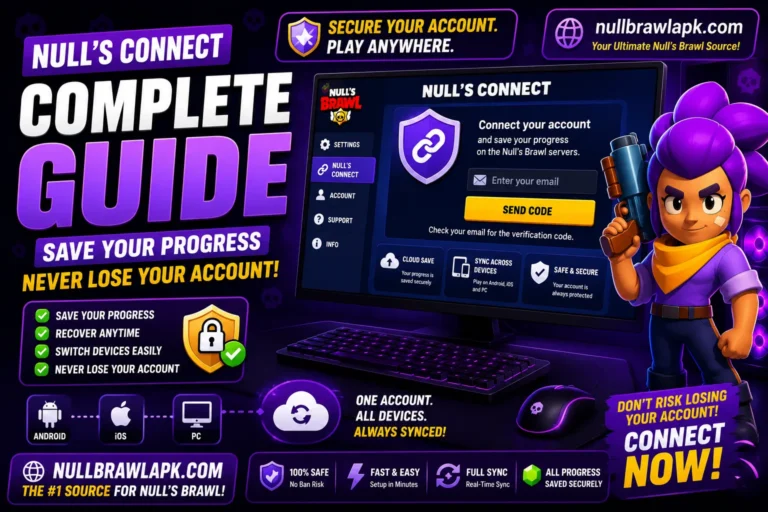
Error Six: Null’s Connect Email Not Arriving
You go through the Null’s Connect setup and type your email but the verification code never arrives.
Check your spam or junk folder immediately. Most automated emails from gaming services get filtered. If the email is in spam, mark it as not spam and add the sender to your contacts to prevent it happening again.
Wait up to ten minutes. The private server email system can sometimes delay during high-traffic periods, especially in the days immediately following a major update release.
Try a Gmail address if you are using something else. Gmail has fewer strict filtering rules than many corporate, Outlook, or custom domain emails for automated gaming server messages. Creating a free Gmail specifically for Null’s Connect takes about two minutes.
Try triggering the email again from within the game. Return to the Null’s Connect screen and re-enter your email to request a new code. Old codes expire, so always use the most recently generated one.
If you are in a region where certain Google services are limited, try using a VPN before attempting Null’s Connect setup.
Error Seven: iOS Specific Issues
App disappears from home screen after 7 days: The Apple certificate from your free Apple ID has expired. This is expected behavior, not a malfunction. Reconnect your iPhone to your computer, open Sideloadly, and reinstall the same IPA file. The process takes about three minutes and all your progress is preserved if you set up Null’s Connect beforehand.
Missing content after installing on iOS: Some users running Null’s Brawl through LiveContainer on iOS have experienced missing custom modifiers and shop content. A clean reinstall of the latest IPA from NullBrawlAPK.com resolves this completely.
Sideloadly shows an error during install: Sign out of your Apple ID in Sideloadly, wait five minutes, sign back in, and try again. If you see error code 0xe8008015 specifically, this means Apple’s certificate service briefly rejected the request. Try again after a short wait.
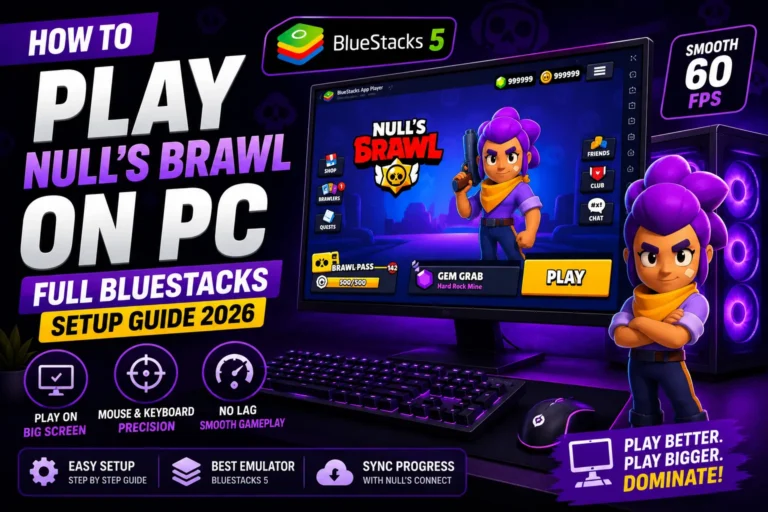
Error Eight: PC and Emulator Issues
BlueStacks will not launch: Enable virtualization in your BIOS settings and enable Hyper-V in Windows Features. Both are required for emulators to run properly on Windows.
Null’s Brawl crashes inside BlueStacks: Increase RAM allocation to at least 4 GB in BlueStacks Performance settings. Update your graphics drivers through Windows Device Manager. Close all background applications before launching.
Cannot connect to server on PC: The emulator’s network is going through an additional translation layer compared to mobile. Try switching between network connection types (WiFi and ethernet) and restarting BlueStacks completely rather than just restarting the game.
| Platform | Common Issue | Fix |
| Android | APK not installing | Enable Unknown Sources, clear old installs |
| Android | Stuck at 79 percent | Disable emoji keyboard |
| Android | Mid-match crash | Lower graphics, free storage |
| Android | No server connection | Switch network, check Telegram for maintenance |
| iOS | App disappears | Renew Sideloadly certificate |
| iOS | Missing content | Fresh reinstall of latest IPA |
| PC BlueStacks | Won’t launch | Enable Hyper-V and virtualization |
| PC BlueStacks | Game crash | Increase RAM allocation |
| All platforms | Email not arriving | Check spam, use Gmail |
Conclusion
Most Null’s Brawl errors fall into a predictable set of categories and each has a proven fix. Installation errors almost always come from storage space or Unknown Sources settings. Loading screen issues come from connectivity or cached data. Mid-match crashes point to performance settings or device resources. Following the fixes in this guide resolves the problem in the overwhelming majority of cases. If an issue persists after trying every relevant fix here, the Null’s Brawl Telegram community is the fastest place to get help from people who have seen and solved virtually every possible issue.
![Best Similar Games like Null’s Brawl in 2026 [Top 20 Picks]](https://nullbrawlapk.com/wp-content/uploads/2026/05/Similar-Games-Like-Nulls-Brawl-1-768x576.webp)