How to Set Up Null’s Connect in Null’s Brawl
Null’s Connect Complete Guide — Save Your Progress
Null’s Connect Complete Guide Save Your Progress and never lose your account. If you have ever lost progress in a game because you switched phones or had to reinstall an app, you already understand why account saving systems matter. Null’s Brawl has its own version of this called Null’s Connect, and if you skip the setup the first time you install the game, you are one phone drop or factory reset away from losing everything.
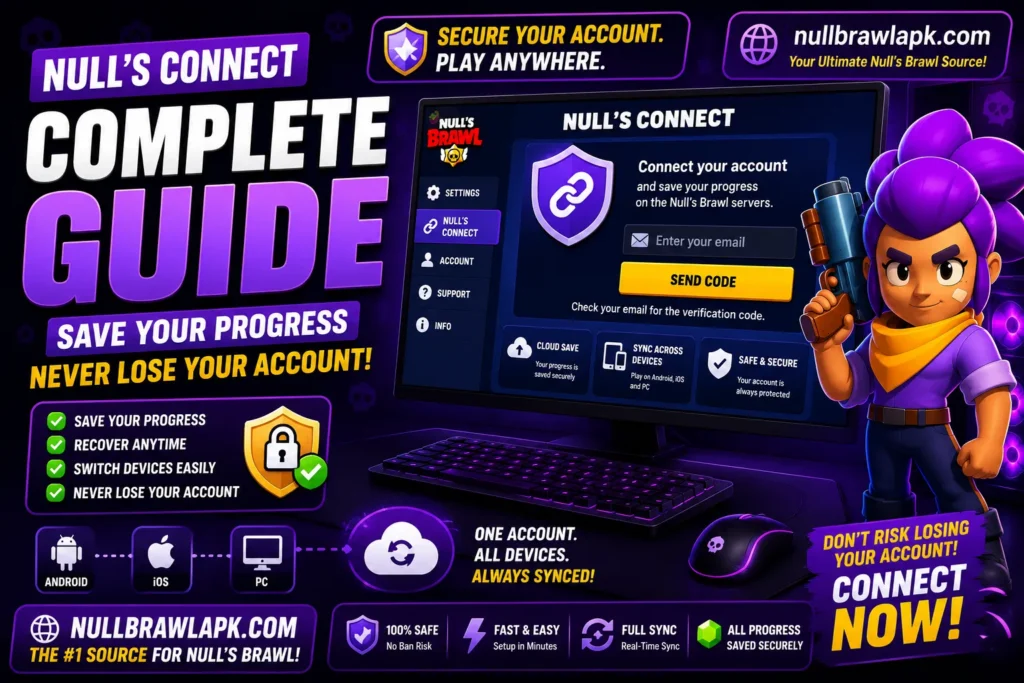
This guide covers what Null’s Connect actually is, how to set it up in about two minutes, how to use it across multiple devices, how to recover your account if something goes wrong, and what to do if the verification email never arrives.
What is Null’s Connect
Null’s Connect is the private server account system for Null’s Brawl. It works the same way Supercell ID works in the official Brawl Stars game. You link your Null’s Brawl progress to an email address, and from that point on your account is stored on the private server rather than only on your device.
Without Null’s Connect, your progress is stored locally on your phone. Every brawler you use, every club you join, every skin you equip is saved on that specific device. If you reinstall Null’s Brawl, the local data gets wiped and you start from scratch. If you switch to a new phone, the progress does not transfer.
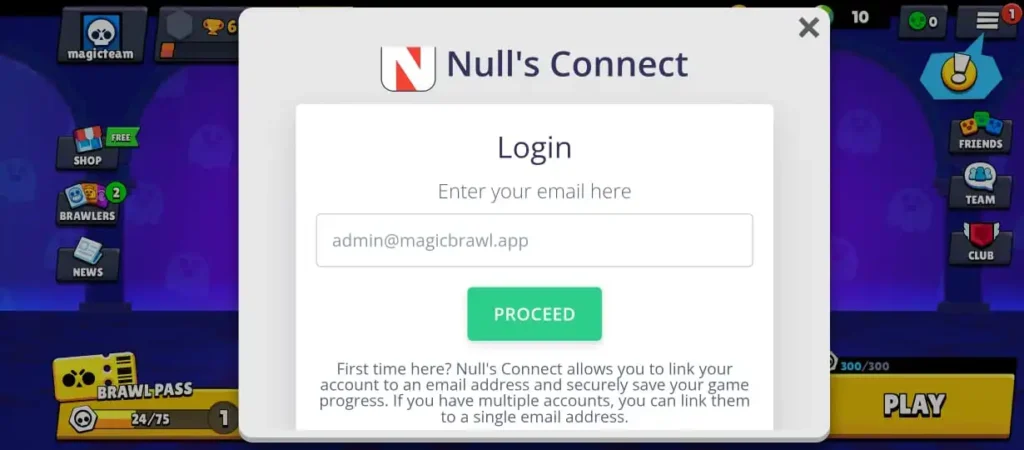
With Null’s Connect active, your account lives on the private server. You can reinstall Null’s Brawl, switch phones, update to a new version, or start playing on PC and all your customizations and club memberships come back the moment you log in with your linked email.
It is worth noting that even though Null’s Brawl gives you everything unlocked from the start (all brawlers, all skins, unlimited gems), you still have personal account preferences. Your club membership, your trophy count, your username, your friends list, and your pinned brawlers are all personal to your account. These are what Null’s Connect protects.
How to Set Up Null’s Connect
Setting up Null’s Connect takes about two minutes. Do this immediately after installing Null’s Brawl before you play a single match.
Open Null’s Brawl on your device. On the main home screen, look for the menu icon in the top right corner. It usually appears as three horizontal lines or a small icon depending on your version.
Tap the menu icon to open the right-hand side menu. In this menu, find and tap on Null’s Connect. It is usually near the top of the menu options.
A screen appears asking for your email address. Type in a valid email address that you have access to. You do not need to use your personal email if you prefer not to. A separate email created for gaming works perfectly. What matters is that you can receive emails from this address.
After typing your email and tapping Proceed or Confirm, check your email inbox. A message from the Null’s Brawl server will arrive with a six-digit verification code. This usually arrives within one to two minutes. Check your spam folder if you do not see it in your main inbox within five minutes.
Type the verification code into the game where it asks for it and tap Confirm or Verify. Once you see a confirmation that your account is now linked, the setup is complete. Your progress is now saved on the private server under that email address.
That is everything. From this point forward, every time you open Null’s Brawl on any device and log in with the same email through Null’s Connect, your full account is restored.
How to Log Into Null’s Connect on a New Device
The process of restoring your account on a new phone, after reinstalling, or when starting on PC is almost identical to the setup process.
Open Null’s Brawl on the new device or fresh installation. Go to the right-hand menu and tap Null’s Connect. Instead of creating a new account, enter the email address you used during initial setup. Tap Proceed or similar. Enter the verification code sent to your email. Confirm it. Your full account including club membership and trophy count loads immediately.
Do not create a new account with a different email if you are trying to restore an existing one. Creating a new account starts fresh. Always use the original email you registered with.
Using Null’s Connect Across Multiple Devices
One of the most useful things about Null’s Connect is that it syncs progress across platforms. The same account works on Android, iOS, and PC through an emulator simultaneously.
Log into the same Null’s Connect account on your Android phone and on BlueStacks on your PC. Anything you do on one platform reflects on the other. If you join a club on your phone, it is there on your PC when you open the game. If you change your username through the slash rename command on PC, it updates on your phone.
There is no need to worry about conflicts between platforms. The private server handles the sync and the last active session’s state is what appears when you switch platforms.
What Null’s Connect Does Not Save
It is helpful to know the boundaries of what Null’s Connect stores so there are no surprises.
Null’s Connect does not save local game settings like your graphics quality preference, your volume settings, or your control layout if you are using a custom setup. These are stored on the device itself. When you switch devices you will need to reconfigure your personal preferences.
On iOS specifically, Null’s Connect does not replace the certificate renewal process. Even with Null’s Connect active, the Sideloadly certificate still expires every 7 days and needs to be refreshed. What Null’s Connect guarantees is that refreshing the certificate (reinstalling the IPA) does not lose your account progress.
Troubleshooting Null’s Connect Problems
The verification email is not arriving — Check your spam or junk folder first. Wait up to ten minutes before trying again. If the email never arrives, try a different email provider. Gmail addresses tend to work most reliably with Null’s Connect verification. Some corporate or custom domain email providers have strict filtering that blocks automated verification emails.
The verification code is not working — Codes expire after a short time. If you waited too long before entering it, go back through the process to request a fresh code. Make sure you are typing the code exactly as it appears, with no spaces added.
Null’s Connect option is not visible in the menu — Make sure you are running the latest version of Null’s Brawl from NullBrawlAPK.com. Very old versions of the private server had different menu layouts. Update to V68.250 and the Null’s Connect option is clearly present.
Account not loading after logging in on a new device — Wait 30 seconds after confirming your code. Sometimes the sync from the server takes a moment, especially on first login. Force close the game and reopen it if the account has not appeared after a minute.
Forgot which email you used — If you are still logged in on the original device, go to the right-hand menu in the game and check Null’s Connect. If your account is linked, the screen will show the email associated with your account.
| Problem | Cause | Solution |
| Email not arriving | Spam filter or wrong email | Check spam, try Gmail |
| Code not working | Code expired | Request a new code |
| Option not in menu | Old app version | Update to latest version |
| Account not loading | Server sync delay | Wait 30 seconds, reopen game |
| Wrong account loaded | Entered different email | Log out and re-enter original email |
| Email arrives but code is wrong | Typo in entry | Re-read code carefully, no spaces |
| Cannot receive emails | Email provider blocking | Use a Gmail or Outlook address |
| Lost email access | Account compromised | Contact private server support |
How to Change Your Null’s Connect Email
If you want to move your Null’s Brawl account to a different email address, you can do so through the in-game menu. Go to the right-hand menu and open Null’s Connect. Look for an option to update or change your linked email. Enter the new email, verify it with the code sent to that address, and the account transfers to the new email. You can then log in with the new email on any device.
Security Tips for Your Null’s Connect Account
Use a unique email address for Null’s Connect rather than your primary personal email. This keeps your gaming account separate from anything important. If for any reason the gaming email were to be compromised, your personal email stays unaffected.
Do not share your Null’s Connect email and verification codes with anyone. There is no legitimate reason for another person to need these credentials.
Keep a note of which email address you used somewhere secure, even just in your phone’s notes app. The most common support request in the Null’s Brawl community is people who lost access to an account because they forgot which email they used during setup years ago.
Conclusion
Null’s Connect is the one setup step that genuinely matters after installing Null’s Brawl. Two minutes of setup protect everything you build in the game from accidental loss. Set it up before your first match, use a Gmail address for reliability, and keep a note of which email you used. Everything else about Null’s Brawl is already set up for you, but this one piece requires action from you to work.
![Best Similar Games like Null’s Brawl in 2026 [Top 20 Picks]](https://nullbrawlapk.com/wp-content/uploads/2026/05/Similar-Games-Like-Nulls-Brawl-1-768x576.webp)